The "provider cannot be found" error means Jet Reports cannot load the data-source driver it needs to reach your ERP. It reads like a serious fault. It almost never is — in practice it comes down to one of three things, and the fastest way through is to work them in order rather than guess.
1. Confirm the data source is actually configured
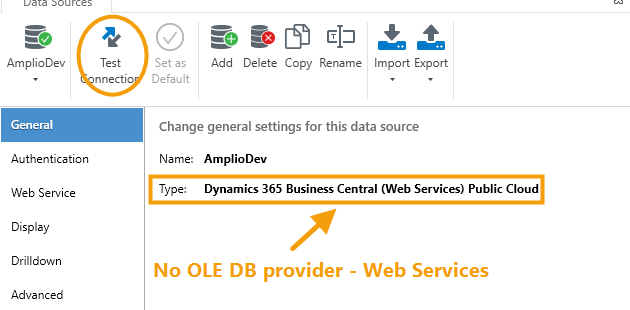
Start here, because it's free to check and it eliminates half of all cases. Open the Jet Reports ribbon → Data Source Settings, then click Test Connection:
You can also reach it straight from the ribbon:

2. On-premises NAV or GP: install the matching provider
For on-premises systems, Jet reaches the database through a provider — typically the SQL Server OLE DB driver or Native Client. If that provider isn't installed, or is the wrong architecture, you get this exact error.
- Check your Excel bitness: File → Account → About Excel.
- Install the same-bitness OLE DB / SQL client the data source expects. 64-bit Excel needs the 64-bit provider.
- Restart Excel and re-test the connection.
3. Rule out the bitness mismatch
This deserves its own step because it is the cause people rule out too early. A 64-bit provider will never load into 32-bit Excel, and vice versa. Everything can look correctly installed while nothing works.
Three things must agree: your Excel, your Jet Reports build, and your database provider. Note that you cannot judge Jet's build from its install folder — it lives in Program Files (x86) either way. Check File → Options → Add-ins → COM Add-ins and confirm Load Behavior: Loaded instead.
4. Business Central online — a different animal
If you're on cloud Business Central, there is no OLE DB provider involved at all. You can see this in the data source itself — the type reads Business Central (Web Services), as in the screenshot above. BC connects over web services and OData, so this error usually points at one of:
- The data source URL — wrong environment, wrong company, or a typo
- An expired credential or token — very common after a password or tenant change
- Web services not published in Business Central for the objects you're querying
Re-authenticate first, then confirm the endpoint is live and the relevant web services are published. If the report worked yesterday and doesn't today, an expired credential is the overwhelming favourite.
Why this error is worth fixing properly
It tends to strike at month-end, because that's when the reports get run. The temptation is to work around it — export manually this once, fix it later. That workaround has a habit of becoming the process. If the same error keeps returning, something structural hasn't been addressed: usually a mismatch that was patched rather than aligned, or a credential nobody owns.
Frequently asked
It worked yesterday and broke today.
It works for one user but not another.
Can I just reinstall Jet to fix it?
We're moving to Business Central online — does this go away?
Connection errors on live finance reports are exactly what we fix — often in a single session.
Book a free reporting review