Installing Jet Reports takes a few minutes. The reason it has a reputation for being fiddly is a single failure mode: the install completes, you open Excel, and the Jet ribbon isn't there.
Before you start
Have your connection details to hand — the Business Central web service URL and credentials, or the SQL server and database for on-premises NAV/GP — and close Excel completely. The installer cannot patch a running Excel.
C:\Program Files (x86)\ regardless, so you cannot tell which build you have from the folder. If you want to check your Excel, it is File → Account → About Excel — but don't use the install path as evidence either way. We'll show you a far more reliable check below.The install
- Download the installer from your insightsoftware account, or the link your partner provided.
- Run it and choose Jet Reports (the Excel add-in).
- Open Excel. You should see a Jet Reports tab on the ribbon.
- Click Data Source Settings and add your ERP connection.
- Test with the Report Wizard, or a simple
=NL("Rows","Customer","No."), to confirm data comes back.
A successful install looks like this — a Jet Reports tab with the full toolset:

The Jet ribbon didn't appear
This is the common one. Work through these in order; stop as soon as the ribbon returns.
1. Check it isn't simply unticked
Go to File → Options → Add-ins. At the bottom, set Manage to COM Add-ins and click Go. If Jet is listed but unticked, tick it:
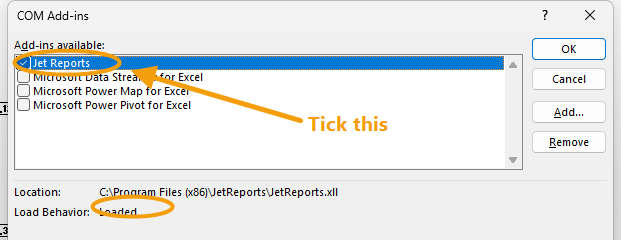
Load Behavior: Loaded means the add-in is genuinely running — no guesswork about versions or bitness. If it says anything else, that is your problem. Note the file is JetReports.xll: Jet is an XLL add-in, which is why it doesn't always appear where you'd expect in Excel's settings.2. Check Disabled Items
In the same Manage dropdown, choose Disabled Items and click Go. If Jet appears there, select it, click Enable, then restart Excel. Excel moves add-ins here automatically after an unexpected shutdown, and they stay until manually re-enabled.
3. Bitness mismatch
If Jet appears in neither list, the installed build may not match your Excel. A 32-bit add-in will not load into 64-bit Excel or vice versa. Uninstall Jet, check File → Account → About Excel, and reinstall the matching build.
This is genuinely the last thing to check, not the first — the COM Add-ins dialog above will usually have told you the answer already.
Frequently asked
How do I know for certain the add-in loaded?
Do I need admin rights?
The ribbon disappears every time Excel crashes.
Does Jet Reports work in Excel for Mac or Excel on the web?
That's usually setup, not software. A free review will tell you which.
Book a free reporting review